Sharing & Collaborating on a Rider: Link, PDF, Feedback
11 min read · Updated July 7, 2026 · bands, engineers, PMs, TMs
The complete sharing toolkit for a tech rider: when to use a view-only link, a link with feedback, edit access, or a PDF — and why pairing PDF + live link (same source) beats emailing a frozen file.
TL;DR — To share a stage plot on Techrider.live, pick the access that matches the audience: a view-only link for anyone who just needs to see it, a link + Feedback toggle so the venue can comment without editing, edit access for up to 3 invited collaborators (asynchronous), or a PDF as the festival/paper fallback. The live link and the PDF are generated from the same source, so they never drift.
A tech rider is a document that's meant to leave your hands. The band builds it, but the people who use it — the FOH engineer at the venue, the local crew at load-in, the promoter, the festival production office — each need something different. Some need to read it. Some need to mark it up. A very small few need to change it.
That's the part most stage-plot tools get wrong: they treat "sharing" as a single action. You export a PDF, or you copy a read-only link, and that's the end of it. But a venue engineer who spots a missing channel can't fix a PDF; a local crew member with a question can't comment on a static file; and your own monitor engineer — who should be able to edit — is stuck emailing you change requests.
This guide is the complete sharing toolkit: the four ways to get a rider out of Techrider.live, when to use each, and why pairing a PDF + live link from the same source beats mailing around a frozen file. For inviting editors specifically (the deep dive on multi-editor collaboration), see Collaborating on a Rider: Invite Your Engineer or TM.
Table of contents
- The four ways to share a rider
- Link vs PDF: why you want both
- Collecting feedback without losing control
- When to give edit access
- Which sharing mode should I use?
- FAQ
The four ways to share a rider
Techrider.live gives you four sharing modes, each mapped to a real audience in a production. They're not redundant — they cover the full spread of "who needs to do what with my rider."
1. View-only link (anyone, read-only)
A shareable URL that always points to the latest saved version of your Rider. Recipients can open it in a browser, see the stage plot, input list, monitor mixes, and notes, but they cannot edit anything.
This is what you send to the venue, the promoter, the festival production office — anyone who needs to read the rider to do their job. The link is live: when you save a change, the next person who opens it sees the new version. No re-sending.
2. Link + Feedback (viewers can comment, not edit)
Same view-only link, with the Feedback toggle switched on. Now viewers — typically the venue or local crew — can leave comments on the rider (e.g. "we don't have a second kick mic," "this DI position blocks our subs") without being able to change the rider itself.
This is the missing middle. Most tools force a binary choice: either the venue gets a frozen PDF they can't react to, or you hand over edit access you don't want to give. Feedback lets the people who know the room tell you what needs to change, while you keep control of the source.
. A side panel shows two example comments pinned to items on the rider: "We don't have a second kick mic — use one?" and "Sub position conflicts with bass amp." Neutral UI.)
3. Edit access (owner invites ≤ 3 editors by email)
For the small group who genuinely need to change the rider — your FOH or monitor engineer, your TM, maybe a bandmate — the owner invites up to 3 collaborators by email. Each one can open, edit, save, export, and inspect history on the same Rider.
This is asynchronous collaboration: you edit and save, then your engineer opens the same Rider and picks up where you left off. Not real-time, no live cursors — that's on the roadmap. The full workflow for inviting and managing editors lives in Collaborating on a Rider: Invite Your Engineer or TM; this guide stays focused on choosing when edit access is the right call.
4. PDF export (festival / paper fallback)
A downloadable PDF of the current Rider. This is your safety belt for places where a live link doesn't survive: festival networks that drop out, crews who want paper at front-of-house, archives and contracts that demand a file.
The key point: the PDF and the live link are generated from the same source data. They can't disagree with each other, because they aren't two separate documents — they're two outputs of one Rider.
, a small thumbnail preview of the generated PDF showing the stage plot and input list laid out cleanly, and a timestamp marking when it was generated. Neutral UI.)
Link vs PDF: why you want both
A common mistake is picking one or the other and treating it as "the deliverable." They do different jobs.
| Live link | ||
|---|---|---|
| Always current | Yes — points at the latest save | No — frozen at export time |
| Works offline / bad network | No | Yes |
| Printable at load-in | Awkward | Clean |
| Venue can pre-read before show | Yes | Yes |
| Good for archives / contracts | No | Yes |
The live link is your source of truth — the thing that's always up to date. The PDF is your festival and paper fallback — the thing that survives when the wifi doesn't.
Because both come from the same Rider, you don't get the classic day-of disaster: the channel numbers on the printed plot don't match the link the engineer is looking at on their phone. There's one Rider; the PDF is just a snapshot of it.
A sensible rhythm:
- Share the live link as soon as the Rider is in usable shape — venue and engineer can start reading.
- Take feedback, edit, save. The link updates itself.
- The day before load-in (or the morning of), export a fresh PDF with a date in the filename, and send that to anyone who needs paper. Re-export after any material change.
→ For the wider argument that a rider should evolve rather than be frozen, see Why Your Tech Rider Should Be a Living Document.
Collecting feedback without losing control
Feedback is the most underused mode, and the one that saves the most email.
Turn the Feedback toggle on for the people you'd normally have to chase by message — the local crew, the venue's house engineer, a support-act TM who knows the room. They can read the rider and drop comments exactly where the issue is, attached to the relevant item, instead of describing it in a separate email ("you know, the third input from the left").
What Feedback is not:
- It is not edit access. Viewers cannot change positions, channels, mixes, or notes. The source stays under your control.
- It is not public editing. The link is still a link — turning Feedback on doesn't let random recipients rewrite your rider. It lets them comment.
A typical flow: a few days before the gig, share the view-only link with Feedback on. The house engineer leaves three comments ("no second kick mic," "we'll need a DI for the keys, not a line," "monitor world needs more wedges downstage left"). You or your engineer read them, decide which to act on, edit the Rider, and save. The link your venue opens next already reflects the changes — no "v2_FINAL" email chain.
When to give edit access
Edit access is the narrowest tier, and it should stay narrow. Give it to the few people who genuinely need to change the rider — typically your FOH or monitor engineer and your TM. Up to 3 collaborators per Rider, invited by email by the owner.
Each invited editor can open, edit, save, export, and inspect history on the same Rider. It's asynchronous: one person works at a time, saves, and hands off. There is no real-time simultaneous editing and no live presence today — that's on the roadmap, not shipping.
How to decide between Feedback and edit access:
- If they need to tell you something about the room or the gear → Feedback. (Venue, local crew, support act.)
- If they need to change the rider itself — channel assignments, mic choices, patch, mixes → edit access. (Your engineer, your TM.)
For the full editor workflow — how to invite, how the turn-based handoff works in practice, how to use the history view to see who changed what — see Collaborating on a Rider: Invite Your Engineer or TM. This guide deliberately doesn't re-explain that; it just tells you when edit access is the right mode to reach for.
Which sharing mode should I use?
The decision is driven by two questions: who is the audience, and what do they need to do with the rider?
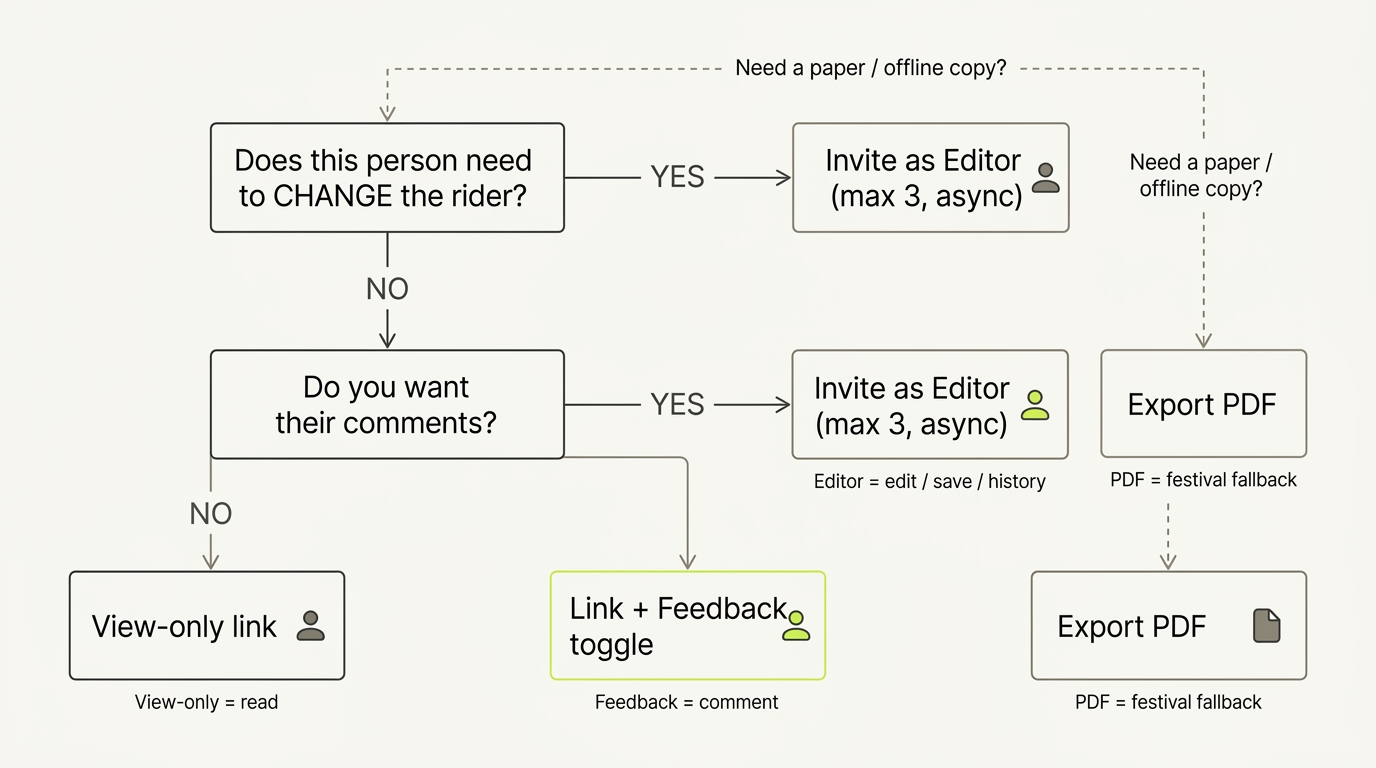
In one line each:
- View-only link — anyone who needs to read the rider to do their job.
- Link + Feedback — anyone who needs to flag something in the room, without touching the source.
- Edit access — your engineer or TM, the few who actually change the rider (≤ 3, asynchronous).
- PDF — the printed, offline, archive copy; re-export after material changes.
And the pairing that beats any single format: send the live link as the source of truth, and a freshly dated PDF as the festival fallback. Same source, no drift.
FAQ
How do I send my stage plot to a venue? Copy the view-only share link from the Rider and email or message it to the venue's production contact. It always points at the latest saved version, so you don't need to resend after changes. For a venue that wants paper, also export a PDF the day before load-in. The link and the PDF come from the same source, so they agree.
How to share a tech rider? Use the access level that matches the recipient: a view-only link to read, the same link with Feedback on to collect comments, or edit access (invited by email, up to 3 collaborators) for your engineer or TM. For paper or offline use, export a PDF. Most of the time you'll send the live link to the venue and a PDF as a backup.
Should I send a PDF or a link? Both — they do different jobs. The link is always current and is your source of truth; the PDF is the festival/paper fallback that survives bad networks and gets printed at front-of-house. Because they're generated from the same Rider, they never disagree. Send the link as the primary, and a dated PDF as the safety belt.
How to get feedback on a stage plot? Switch on the Feedback toggle on the share link, then send it to the people who know the room — the venue engineer, local crew, or support-act TM. They can leave comments attached to items on the rider ("we don't have a second kick mic") without being able to edit it. You decide which comments to act on, edit the Rider, and save; the link your venue reopens already reflects the change.
Can a venue edit my tech rider? No — not through the link. The share link is view-only by default, and with Feedback on it lets viewers comment but still not edit. True edit access is something the owner grants deliberately, by email, to up to 3 collaborators (typically your own engineer or TM) — it's never opened up to the venue or the public via the link.
What's next
- 👥 Collaborating on a Rider: Invite Your Engineer or TM — the deep dive on multi-editor collaboration: inviting editors, the async handoff, history
- 🔄 Why Your Tech Rider Should Be a Living Document — versioning and the case against frozen PDFs
- 🏆 Best Stage Plot Software for Collaboration & Teams — comparing sharing and collaboration models across tools
Further reading
- The technical rider: 6 tips and a template — IMG STAGELINE
- Stage Plot For Bands, with Examples — DIY Musician (CD Baby)
- List of Apps and Software for Designing Stage Plots — SoundGirls.org
Last updated: 2026-07-07 · Reviewed by the Techrider.live team · Sharing workflows tested against real festival and club productions.
Related guides
How to Make a Stage Plot for Your Band (5-Minute Guide)
A 5-step walkthrough to make a clean, engineer-readable stage plot for your band — set the stage, place performers, add gear and mics, then export a PDF and share link.
9 min readTutorialsFree Stage Plot Template (Download + How to Use)
A stage plot template is a pre-laid-out starting point for your band's stage map. Pick one of four shapes, customize performers and gear, and export a PDF.
9 min readTutorialsHow to Build an Input List / Patch Sheet (with Template)
A channel-by-channel table of every source on stage. Learn the input list columns, the drums-to-vocals ordering, 48V and DI rules, and how a patch sheet differs.
7 min read